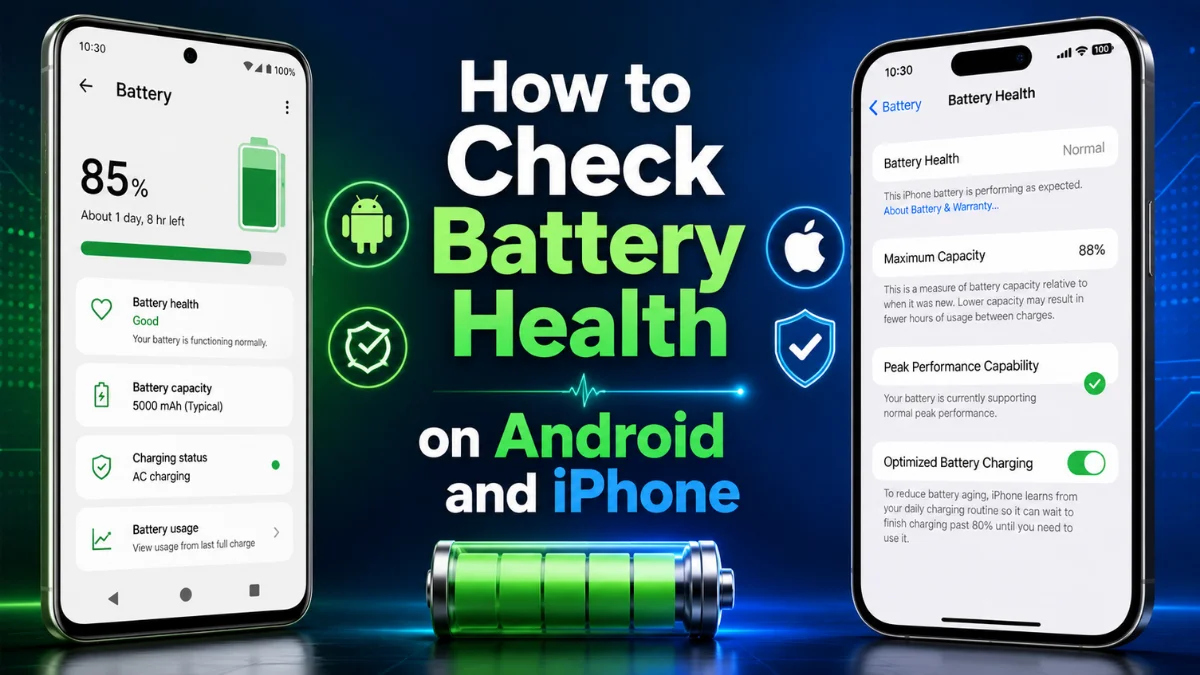
How to Check Battery Health on Android and iPhone
 By Inflix
 Learning how to check battery health can help you understand why your phone drains quickly, shuts down unexpectedly or needs charging more often. Battery health shows how much capacity remains compared with when the battery was new. Therefore, checking it regularly can help you decide whether the issue comes from apps, charging habits or an ageing battery.
Knowing how to check battery health helps you understand how much charging capacity your phone has lost over time. It can also explain sudden shutdowns, slow performance, overheating and shorter battery life.
iPhones provide a clear battery health percentage inside Settings. However, Android battery health options vary by manufacturer and software version. Google Pixel and Samsung Galaxy phones include diagnostic tools, while some other Android devices may only show battery usage information.
This guide explains how to check battery health on iPhone, Samsung, Google Pixel and other Android phones. It also covers battery cycle counts, maximum capacity and the warning signs that suggest a replacement is needed.
What Does Phone Battery Health Mean?
Phone battery health describes the current condition and charging capacity of a battery compared with when it was new.
For example, a phone with 90% maximum capacity can hold approximately 90% of the charge that it originally stored. Therefore, the phone may need charging more frequently even when its battery indicator still reaches 100%.
In other words, battery health does not show the current charge level. Instead, it measures how well the battery can still store energy compared with its original condition.
Battery health normally declines because lithium-ion batteries chemically age over time. Frequent charging, excessive heat, high power usage and long periods at extremely high or low charge levels may accelerate that aging.
Apple explains that maximum capacity compares the battery’s present capacity with its capacity when new. As the battery chemically ages, users may notice fewer hours of use between charges.
Battery Health Terms You Should Understand
| Battery term | What it means |
|---|---|
| Maximum capacity | The amount of charge the battery can currently hold compared with when it was new |
| Cycle count | The number of complete charging cycles the battery has used |
| Peak performance | Whether the battery can provide enough power during demanding tasks |
| Battery status | A basic result such as “Good,” “Normal,” “Weak,” or “Action Required” |
| Battery usage | A record of which apps and features used the most power |
| Battery diagnostics | A built-in test that checks charging, temperature or battery condition |
How to Check Battery Health on an iPhone
Apple provides built-in battery health information on supported iPhones. Therefore, you usually do not need to install a third-party app.
Check iPhone Maximum Capacity
Open:
Settings > Battery > Battery Health & Charging
Depending on your iPhone model and iOS version, the page may show:
- Maximum Capacity
- Peak Performance Capability
- Optimised Battery Charging
- Charging optimisation settings
- An important battery message
- A battery replacement recommendation
Apple states that the Battery Health screen displays maximum battery capacity and peak performance information.
What Does iPhone Maximum Capacity Mean?
Maximum Capacity shows how much charge the battery can hold compared with when it was new.
For example:
- 100%: The battery is close to its original capacity
- 90%: Some natural ageing has occurred
- 85%: Battery life may feel noticeably shorter
- 80% or below: A replacement may be worth considering, especially when performance or daily usage is affected
However, the percentage alone does not tell the complete story. Battery temperature, app activity, charging habits and mobile signal strength can also affect daily battery life.
How to Check iPhone Battery Cycle Count
On iPhone 15 models and later running supported iOS versions, open:
Settings > Battery > Battery Health
This section may display:
- Cycle Count
- Manufacture Date
- First Use Date
- Maximum Capacity
- Battery replacement information
Apple confirms that iPhone 15 models and later with iOS 17.4 or newer can display cycle count, manufacture date and first-use details within Battery Health.
A charging cycle does not necessarily mean charging from 0% to 100% in one session. Instead, separate partial charges can combine to form one complete cycle.
How to Check Battery Health on a Google Pixel
Battery health options on Pixel phones can vary according to the model and Android version.
Use Pixel Battery Diagnostics
Open:
Settings > Battery > Battery Diagnostics
Next, select the problem you want to investigate, such as:
- Battery draining too quickly
- Phone becoming too warm
- Charging problems
- General battery performance
Google provides Battery Diagnostics on supported Pixel phones and recommends using it to investigate battery drain and charging issues.
Check Device Health and Support
On some newer Pixel software versions, open:
Settings > Device Health and Support
This area may show:
- Overall device status
- Battery health information
- Phone temperature
- Charging diagnostics
- Support and repair options
Google’s Pixel support guidance says Device Health and Support may include feature-status summaries such as battery health and phone temperature.
Check Pixel Battery Usage
If your Pixel does not display a battery health percentage, open:
Settings > Battery > Battery Usage
This screen helps identify apps that consume unusually high amounts of power. Although it does not directly measure maximum capacity, it can reveal whether poor battery life comes from software rather than battery ageing.
How to Check Battery Health on a Samsung Phone
Most Samsung Galaxy phones provide a battery diagnostic result through the Samsung Members app.
Use Samsung Members Battery Diagnostics
Follow these steps:
- Open the Samsung Members app.
- Select Support.
- Open Phone Diagnostics.
- Choose Battery Status or run all available tests.
- Review the result shown on the screen.
Samsung says the Phone Diagnostics feature in Samsung Members can check the battery status without requiring an immediate service-centre visit.
The result may appear as:
- Good
- Normal
- Weak
- Bad
- Action Required
The exact wording can vary between phone models and Samsung Members versions.
Check Samsung Battery Usage
You can also open:
Settings > Battery and Device Care > Battery
This section usually shows:
- Estimated battery time remaining
- Background app usage
- Power-saving options
- Apps using the most battery
- Charging settings
- Battery protection features
However, many Samsung phones do not display a maximum-capacity percentage in the same way as an iPhone.
How to Check Battery Health on Other Android Phones
Android does not provide one identical battery health menu across every brand. Therefore, the available options depend on the phone manufacturer.
Begin by checking:
Settings > Battery
Then look for options such as:
- Battery Health
- Battery Diagnostics
- Device Care
- Battery Condition
- Phone Diagnostics
- Battery Usage
- Charging Status
- Battery Protection
Manufacturers such as Xiaomi, OnePlus, Oppo, Vivo, Motorola and Nothing may place battery information in different sections.
You can also search inside Settings for:
Battery health
or
Battery diagnostics
If your phone only shows battery usage, it may not support a built-in maximum-capacity reading.
However, the absence of a percentage does not mean that battery health cannot be checked. Instead, built-in diagnostics, battery usage data and physical warning signs can still provide useful information.
Can a Battery Health App Give an Accurate Result?
Third-party Android apps can estimate battery capacity by monitoring charging activity over several sessions. However, these results are estimates rather than official hardware readings.
A battery app may help you track:
- Charging speed
- Estimated current capacity
- Battery temperature
- Screen-on battery drain
- Charge history
- App power usage
Nevertheless, avoid apps that request unnecessary access to contacts, messages, storage or other private information.
For the most reliable result, use your phone manufacturer’s built-in diagnostics or an authorised repair centre.
How to Check Battery Health Without a Percentage
Not every phone displays maximum capacity. Even so, several symptoms can reveal that a battery is ageing.
Battery Drains Quickly
A healthy phone should not lose large amounts of charge while sitting unused. However, weak mobile reception, background apps and location services can also increase drain.
Check the battery usage page before assuming the battery is faulty.
Phone Shuts Down Unexpectedly
Unexpected shutdowns at 20%, 30% or even 40% may indicate that the battery can no longer provide stable power.
Restart the phone and install available software updates. If the shutdowns continue, arrange a battery diagnostic test.
Battery Percentage Changes Suddenly
A battery reading that jumps from 40% to 15% may indicate inaccurate calibration or physical battery degradation.
Using the phone normally through several charging sessions may help the software calculate the remaining charge more accurately. However, repeatedly draining a lithium-ion battery to 0% is not recommended.
Phone Becomes Hot During Basic Use
Some warmth is normal during charging, gaming or video recording. In contrast, excessive heat during messaging, browsing or standby may indicate a battery, charger or background-app problem.
Google recommends charging Pixel phones in a cool environment and limiting exposure to high temperatures because heat can affect battery longevity.
You can also read our guide on why your phone keeps overheating.
Battery or Screen Starts Swelling
A swollen battery may push the display away from the phone frame. It may also create unusual gaps around the screen or back cover.
Stop charging and using the phone immediately. Do not press the screen back into place or puncture the battery. Instead, arrange professional repair or safe battery disposal.
What Is a Good Battery Health Percentage?
The following table provides a simple general guide:
| Battery health | General condition | Recommended action |
|---|---|---|
| 90% to 100% | Excellent or lightly used | Continue normal use |
| 85% to 89% | Good | Monitor daily battery life |
| 80% to 84% | Noticeably aged | Consider replacement if battery life is poor |
| Below 80% | Heavily degraded | Battery replacement may significantly improve usage |
| Swollen or unstable | Unsafe | Stop using the phone and seek repair |
These ranges are general guidance rather than a universal manufacturer rule. A phone at 84% may still meet your needs, while another device at 90% may drain quickly because of demanding apps or poor signal strength.
When Should You Replace Your Phone Battery?
Consider replacing the battery when its health falls close to or below 80%. You may also notice that the phone no longer lasts through the day or shuts down unexpectedly. In addition, charging may become slower, while the battery percentage can change suddenly. Excessive heat, swelling or a manufacturer service warning also suggests that professional replacement is needed.
A new battery may restore daily battery life and improve performance. However, replacement may not be cost-effective when the phone also has display, charging-port or motherboard damage.
How to Improve Battery Health and Lifespan
Battery ageing cannot be stopped completely. Still, better charging habits may slow it down.
Avoid Excessive Heat
Heat is one of the biggest threats to lithium-ion batteries. Therefore, avoid leaving your phone in direct sunlight, inside a hot car or under a pillow while charging.
Remove the case temporarily if the phone becomes unusually hot during charging.
Use Optimised or Adaptive Charging
Modern phones can delay the final stage of charging until you are likely to need the device.
On iPhone, enable Optimised Battery Charging inside Battery Health settings.
On supported Android phones, look for:
- Adaptive Charging
- Optimised Charging
- Battery Protection
- Charging Limit
- Protect Battery
Google recommends using Adaptive Charging to help maximise Pixel battery lifespan.
Use a Reliable Charger
Poor-quality chargers may create excess heat, unstable charging or slow charging speeds.
Use the original charger or a reliable certified alternative that supports your phone’s charging requirements.
For more help, read Why Is My Phone Charging Slowly? 12 Ways to Fix It.

Avoid Keeping the Battery Empty for Long Periods
Leaving a phone completely discharged for an extended period may affect battery stability.
When storing a device for several weeks, leave it partially charged and keep it in a cool, dry location.
Update Your Phone and Apps
Software updates may fix bugs that cause overheating, background activity or abnormal battery drain.
Additionally, update apps regularly and remove any app that continues using excessive power.
Battery Health vs Battery Life
Health and battery life are related, but they are not the same.
Battery health describes the physical condition and remaining capacity of the battery.
Battery life describes how long the phone lasts during a single charge.
A phone may have good battery health but poor battery life because of:
- High screen brightness
- Gaming or video recording
- Weak mobile signal
- Background location access
- Always-on display
- High refresh rate
- Malware or a faulty app
- Recent software installation
Therefore, check both battery health and app usage before deciding to replace the battery.
Frequently Asked Questions
How do I check battery health on Android?
Open Settings and search for Battery Health, Battery Diagnostics or Device Care. On Pixel phones, check Battery Diagnostics. On Samsung phones, use the Samsung Members app and open Phone Diagnostics.
How do I check iPhone battery health?
Open Settings > Battery > Battery Health & Charging. You can view Maximum Capacity, Peak Performance Capability and any battery service recommendation.
Is 85% battery health good?
An 85% battery can still work normally, although it may not last as long as it did when new. Consider replacement when daily battery life becomes inconvenient or the phone develops shutdown problems.
Is 80% battery health bad?
A battery at 80% has lost a noticeable amount of its original capacity. It is not automatically unsafe, but replacing it may improve battery life and reliability.
Why does my Android phone not show battery health?
Android manufacturers use different software and diagnostic systems. Some phones show only battery usage or a basic status rather than a maximum-capacity percentage.
Can battery health increase again?
Battery health normally does not increase because physical battery ageing cannot be reversed. However, the displayed percentage may change slightly when the phone recalculates or recalibrates its estimate.
Does fast charging damage battery health?
Fast charging creates more heat than slower charging in some situations. However, modern phones manage charging speed and temperature automatically. Use a reliable compatible charger and avoid charging in hot environments.
How often should I check phone battery health?
Checking every few months is usually enough. You should also check it when battery life suddenly becomes shorter, the phone shuts down unexpectedly or the device becomes unusually hot.
Final Thoughts
Learning how to check battery health can help you separate normal app-related battery drain from physical battery ageing.
On an iPhone, open Battery Health & Charging to view maximum capacity and performance information. On Google Pixel phones, use Battery Diagnostics or Device Health and Support. Meanwhile, Samsung users can check battery status through the Samsung Members diagnostics tool.
If your phone has reasonable battery health but still drains quickly, inspect app usage, mobile signal, screen brightness and charging behaviour. However, when the battery is swollen, overheats regularly or causes unexpected shutdowns, stop using the device and arrange a professional inspection.