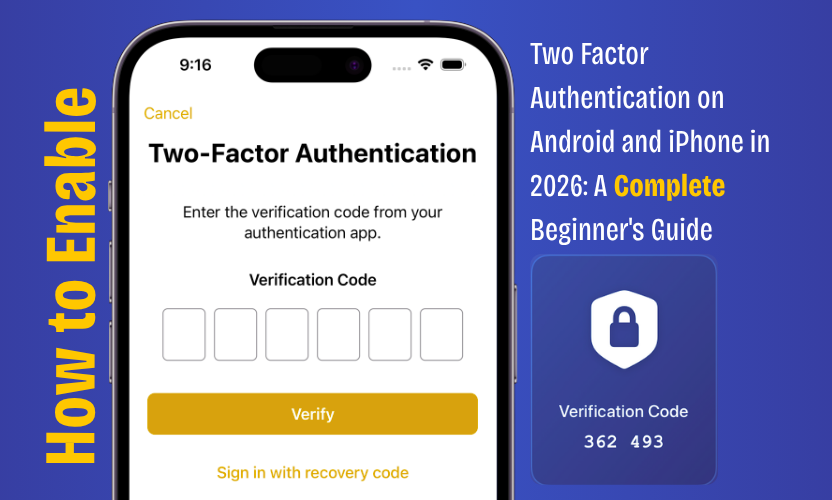
Online accounts are no longer protected by passwords alone. If someone steals your password through a fake login page, public WiFi attack, data breach, or reused password, they may still be able to enter your account unless you add a second layer of protection. That second layer is called two factor authentication.
This MobileVerse beginner guide explains how to enable two factor authentication on Android and iPhone in 2026 using simple steps. You do not need to be technical. You only need your phone, your main account password, and a few minutes to secure your Google Account, Apple Account, and important apps.
What Is Two Factor Authentication?
Two factor authentication is a security method that asks for two proofs before allowing access to your account. The first proof is usually your password. The second proof can be a code, phone prompt, authenticator app, trusted device, passkey, or security key.
For example, if someone knows your Gmail password, they still cannot sign in if your account asks for a code from your phone. Google describes two step verification as an extra layer of security that protects your account if your password is stolen.
Apple also explains that two factor authentication is made to help ensure only you can access your Apple Account, even if someone else knows your password.
That is why two factor authentication on Android and iPhone is one of the simplest security upgrades you can make in 2026.
Why You Should Enable Two Factor Authentication in 2026
Most people make one basic mistake. They think a strong password is enough. It is not. A strong password helps, but it cannot protect you if the password is leaked, reused, typed into a fake website, or saved on an unsafe device.
Two factor authentication adds a second check. This means a hacker needs more than your password. They also need access to your phone, authenticator app, trusted device, or security key.
For MobileVerse readers, this matters because your phone is now connected to almost everything. It stores email, banking apps, social media, photos, business accounts, cloud backups, and payment tools. Losing access to one account can create a chain reaction. Your email can reset your social accounts. Your cloud account can expose photos and files. Your banking app can create financial risk.
If you only do one mobile security improvement this year, enable two factor authentication first.
Best Two Factor Authentication Methods for Beginners
Before you turn it on, understand the main options.
Authenticator App
An authenticator app creates changing codes on your phone. Popular options include Google Authenticator and Microsoft Authenticator. Google says Google Authenticator can sync verification codes across devices when signed in to a Google Account, and codes are encrypted in transit and at rest.
This is usually better than SMS because codes are generated inside the app rather than sent through your mobile network.
Phone Prompt
A phone prompt sends a login approval request to your trusted phone. You tap yes if it is you. This is simple and beginner friendly.
SMS Code
An SMS code is sent to your phone number. It is better than using only a password, but it is not the strongest option because phone numbers can be targeted through SIM related attacks.
Passkeys
Passkeys use your device lock, fingerprint, face unlock, or screen lock to confirm your identity. More services now support them, and they are becoming a stronger replacement for passwords in many cases.
Security Key
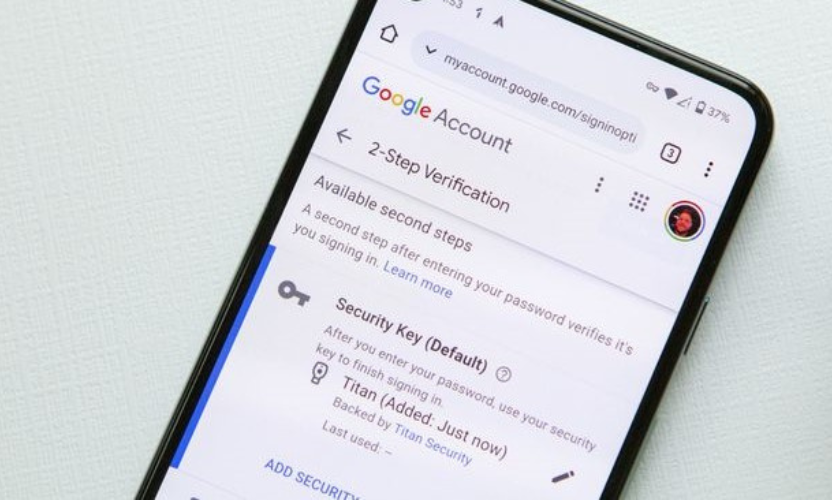
A security key is a physical device used to confirm sign in. It is very secure, but it may be too advanced for some beginners.
For most users, the best setup is an authenticator app plus backup codes.
How to Enable Two Factor Authentication on Android
Most Android users need to secure their Google Account first because Gmail, Google Drive, YouTube, Google Photos, Play Store, and Android backups are connected to it.
Step 1: Open Your Google Account Settings
Open the Google app on your Android phone. Tap your profile picture in the top corner. Choose Manage your Google Account.
Step 2: Go to Security
Tap the Security section. Look for How you sign in to Google.
Step 3: Choose Two Step Verification
Tap Two Step Verification. Google may ask you to enter your password again. This is normal.
Step 4: Choose Your Second Verification Method
Google may suggest a phone prompt, authenticator app, security key, or backup option. For beginners, start with phone prompts because they are easy. Then add an authenticator app for stronger protection.
Step 5: Save Backup Codes
Backup codes are important. They help you get back into your account if you lose your phone. Store them in a safe place, not in a random screenshot that anyone can access.
Step 6: Test Your Login
After setup, sign out on another browser or device and try signing in again. This confirms that two factor authentication is working correctly.
This simple Android setup can protect your Gmail, Google Photos, YouTube, and other Google connected services.
How to Enable Two Factor Authentication on iPhone
On iPhone, the most important account to protect is your Apple Account. This account connects to iCloud, App Store, Find My, iMessage, FaceTime, device backups, photos, and subscriptions.
Step 1: Open iPhone Settings
Open Settings on your iPhone. Tap your name at the top of the screen.
Step 2: Go to Sign In and Security
Tap Sign In and Security or Password and Security, depending on your iOS version.
Step 3: Turn On Two Factor Authentication
Tap the option to turn on or upgrade account security, then follow the instructions on screen. Apple’s own support guide explains that two factor authentication can be set up on iPhone, iPad, and Mac.
Step 4: Add a Trusted Phone Number
Apple may ask you to add a trusted phone number. This number can receive verification codes when needed.
Step 5: Confirm Trusted Devices
Your trusted Apple devices can help verify your identity. Make sure you recognize every trusted device connected to your Apple Account.
Step 6: Keep Your Recovery Details Updated
Check your trusted number and recovery options regularly. If your number changes and you forget to update it, account recovery can become painful.
For iPhone users, this is not optional anymore. If your Apple Account is compromised, your photos, backups, subscriptions, and device location tools may all be exposed.
How to Enable Two Factor Authentication for Apps
After securing Google and Apple accounts, protect your important apps.
Start with these accounts:
- Email accounts
- Banking apps
- TikTok
- Amazon
- PayPal
- Microsoft account
- Password manager
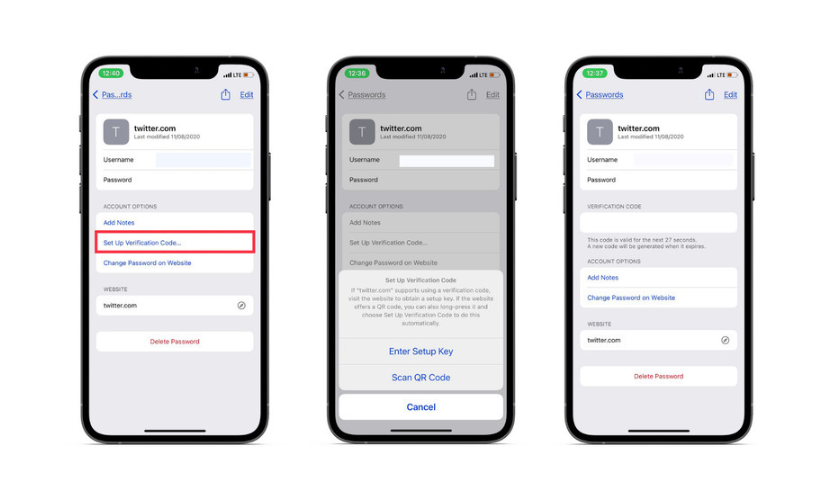
The steps are usually similar. Open the app, go to Settings, choose Security or Account Security, find Two Factor Authentication or Two Step Verification, then follow the instructions.
Use an authenticator app when possible. SMS is acceptable if it is the only option, but it should not be your first choice when better options are available.
Common Mistakes to Avoid
The biggest mistake is turning on two factor authentication without saving backup codes. That is asking for trouble. If your phone breaks or gets stolen, backup codes may be the fastest way to recover access.
The second mistake is using the same weak password everywhere. Two factor authentication helps, but it does not excuse lazy password habits.
The third mistake is trusting every login prompt. If you receive a login approval request and you are not trying to sign in, reject it immediately and change your password.
The fourth mistake is ignoring old devices. Remove phones, tablets, and computers you no longer use from your trusted device list.
The fifth mistake is using SMS forever. SMS is better than nothing, but authenticator apps and passkeys are stronger choices for serious account protection.
MobileVerse Recommended Security Setup for 2026
For beginners, MobileVerse recommends this simple setup.
Use a strong unique password for every important account. Store it in a trusted password manager. Turn on two factor authentication for your Google Account and Apple Account first. Add an authenticator app for email, banking, and social media. Save backup codes somewhere safe. Review trusted devices every few months.
This setup is not complicated, but it blocks many common attacks. Most hackers look for easy targets. If your account has a unique password and two factor authentication, you are already much harder to compromise than the average user.
Final Thoughts
Learning how to enable two factor authentication on Android and iPhone in 2026 is one of the smartest things you can do for your digital safety. Passwords alone are too weak for modern online threats. Your phone now holds your money, identity, messages, photos, and private accounts, so protecting it properly is basic common sense.
Start with your Google Account if you use Android. Start with your Apple Account if you use iPhone. Then secure your email, banking apps, and social media accounts. Use an authenticator app where possible, keep backup codes safe, and never approve a login request you did not start.
This MobileVerse two factor authentication guide gives you the foundation. The next step is simple. Open your phone settings today and turn it on.
FAQs
What is two factor authentication on Android and iPhone?
Two factor authentication is a security feature that asks for a second proof of identity after your password. This can be a code, phone prompt, trusted device, authenticator app, passkey, or security key.
Is two factor authentication better than a password?
Yes. A password can be stolen or guessed. Two factor authentication adds another layer, so a hacker usually needs your phone or verification method as well.
Should I use SMS or an authenticator app?
Use an authenticator app if possible. SMS is better than no protection, but authenticator apps are generally stronger because the codes are not sent through your mobile network.
Can I enable two factor authentication on both Android and iPhone?
Yes. Android users can enable it through their Google Account, while iPhone users can enable it through their Apple Account settings. You should also enable it inside important apps.
What happens if I lose my phone?
You can use backup codes, trusted devices, recovery options, or account recovery tools. That is why saving backup codes during setup is important.
Does two factor authentication stop all hackers?
No security feature stops every attack, but two factor authentication greatly reduces the risk of someone accessing your account with only a stolen password.
Is two factor authentication free?
Yes. Google, Apple, and most major apps offer two factor authentication for free.
What accounts should I protect first?
Protect your email, Google Account, Apple Account, banking apps, password manager, WhatsApp, Facebook, Instagram, and any account linked to payments or private information.